


Simple installation of base station ZJB06
Model: ZJB06
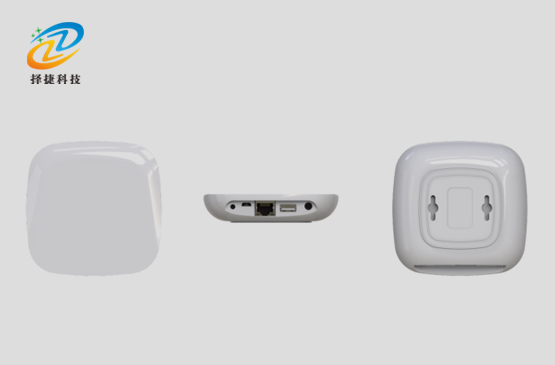
Product Overview
The main thing that you can do is to install a power base station with advanced active wireless communication technology, designed for high sensitivity and low-energy consumption, which has excellent anti-disturbation capabilities and speed of reading cards. It's mainly applied in the indoor environment, and it receives label data, which is critical to ensuring efficient data processing.
Specifications
• Specification: 106*106*27
• Working voltage: USB/5V
• Working frequency: active, active 2.4GHz
◆ Operating current: ≤500 mA
• Number of co-publishing: over 200
• Identification distance: <30m
• Communications interface: Rj45
• Water-proof level: IP50
• Shell material: ABS plastic
• Communication mode: none
Antenna orientation angle: < 180 degrees
◆ Bluetooth precision: <30cm
· Radio power: -30 +4 dBm
• Radio frequency: 100 ms-10s
• Anti-Electromagnetic Interference: 10V/m0.1 ~ 1000 MHz AM Modified Electromagnetic Wave
Additional Specifications
| Specifications | 106*106*27 |
|---|---|
| Operating Frequency | 2.45GHz |
| Read Range | <30m |
| Shell material | ABS Plastics |
| Antenna orientation angle | < 180 Degrees |
| Waterproof level | IP50 |
| Applications | Mainly for indoor tag data reception... |
Product use
• Connecting the equipment to the same routers as the computer, ensuring that they are located in the same segment of the network so as to achieve normal communication and data transmission between the equipment and the computer.
◆ Searching for equipment and changing parameters by testing tool: After starting the Tagding ArmCoreFrm.exe tool, click on the Search Device button, which will show all integrated devices connected to the network on screen. To change the device ' s IP address, make sure that it is in the same section as the current LAN IP network.
• If you need to change the device IP address to 192.168.1.87, click Parameter Settings after this operation to save the changes.
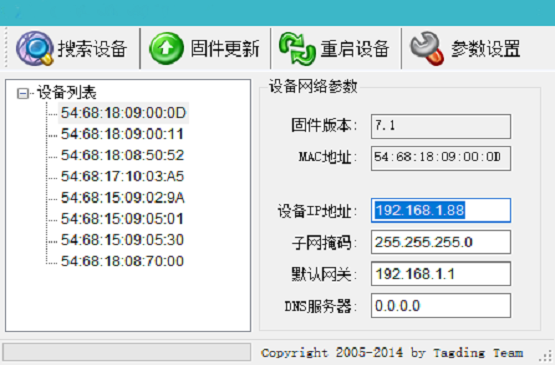
Set up device details through web browser
Enter the IP address of the device in the browser address bar, e.g.: 192.168.1.87 (WEB configuration shows the following:
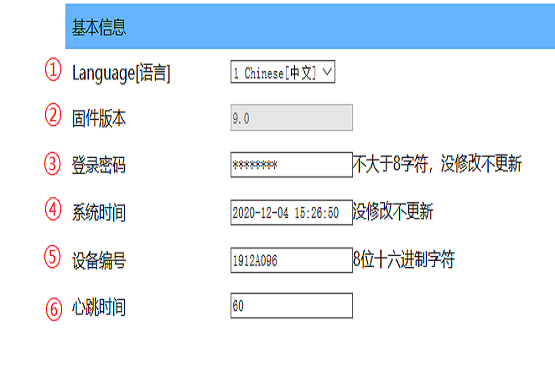
◆ Chinese Switching Options
• The version of the solidware used by the device against the wall
◆ Login password entered when entering configuration page, no defaults
◆ Device Current Time
◆ One ID for each device
• Communications are made every other time to check if the device is online (default 60 seconds)
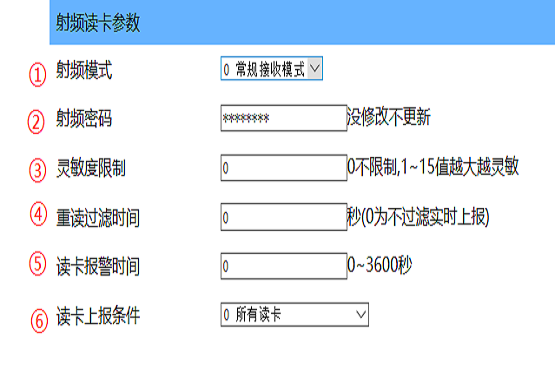
• Switch between modes;
General reception mode: Read 2.4g labels
General response mode: used for flashcard tags, base station
Enhancement** Model: greater power to achieve better reception status, not recommended for long-term use
Source mode: used to receive source type labels (ZJB06 supports general-source mode switching)
If the modified mode is not used properly, then the 2.4g type labels are changed back to the general mode
◆ Radio frequency password does not recommend modification, which cannot be synchronized with labels
◆ 2.4g distance reconciliation, 0 range, but no sensitivity value of 1 small 15 (sensitivity values)
◆ Read the label only once over time and upload in real time, by default, 0 seconds
◆ For TD-PJ15, flash lights every time set, with default value 0 being closed
• All read cards: the tags received at base station ID will be uploaded
Only match low frequency incentive addresses: this option allows readers to receive only the "low frequency incentive parameters" for "low frequency incentives".
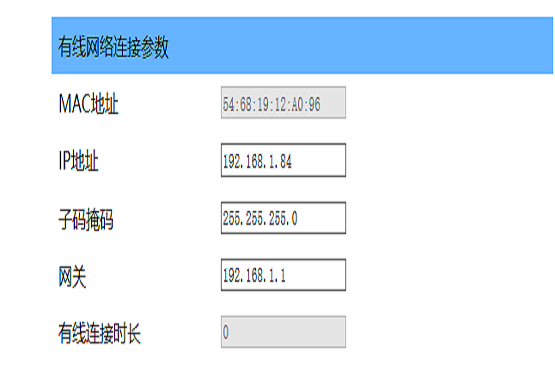
Zoom Shows the current network parameters of the device
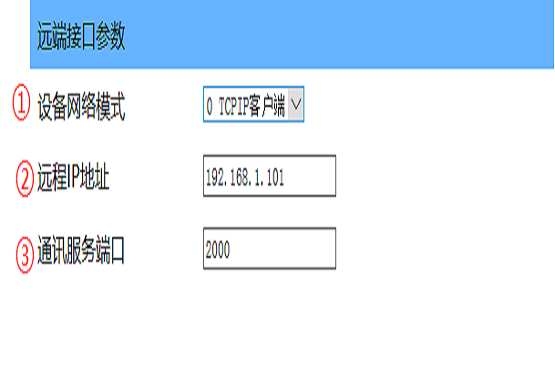
• TCPIP is not required for equipment to be routinely applied
Set the IP address or server(s) that the device receives for uploading the data to
• Communication port default 2000 modified by service port used by the client
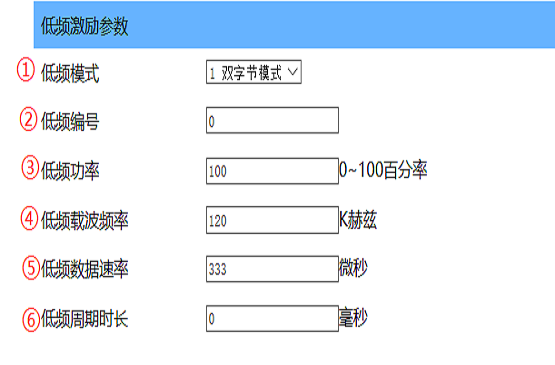
◆ Single-bytes off low-frequency output; double-byte application of general cards; enhanced mode for special cards; default two-by-by-by-te model
◆ Low frequency number used to identify 125k address code
Zoom 125k activates the distance of 0 to 100 minimum.
◆ Debug option, user do not modify, default 120
• Vendor debug option, user do not modify, default 333
Zoom Set 125k interval working hours
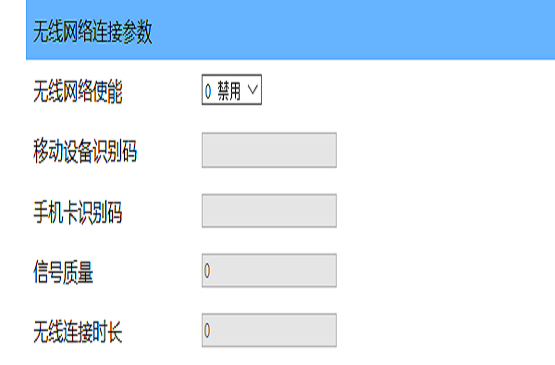
• This feature applies to the base station for supporting 4g plugins, and opens and closes options to display information about the networked card
◆ Parameters need to be clicked Save and Restart before they are effective
Network communication protocol
• Definition of data package: package format (for 40 characters)
◆ Headmark: # (number of characters 1:)
◆ Device number: Hexadecimal (chars: 8)
◆ Date time of device: Decimal (chars: 12)
◆ Label number: Decimal (chars: 10)
• Marks: Any (number of characters 1)
◆ Data: Hexadecimal (chars: 2)
• Total number of historical records: hexadecimal (chars: 4)
◆ Sum check:* (chars: 2)
• Detailed information on the data package:
◆ 1 Headmark: '#'
◆ 2-9 Device ID7(H) - Device ID0(H): The content format is hexadecimal character format, representing the type of device, device number or site number, with the possibility of self-modification (access to the Device Management page can be modified) (this data refers to the device number for a card reader, not the number on the wristband)
◆ 10-21 year high (D)-slow (D): content format is a decimal character format, representing time (in seconds of the month of the year)
◆ Positions 22–31, card number digit I0 (D) through digit I (D): The card number is encoded as decimal characters and represents the wristband’s 2.4G card number.
◆ 32 Functional Marker (C): Content format is a random character, with normal uppercase characters and low number of lower tag characters; A/a: Positioning function, low-frequency location address code for labels collected in label data 1; B/b: Dismantling alarm; S/s: Warning function, label data 1 value 01 for distress alert and 02 for acceleration alert; H/s: Heart rate function, Cardiac rate obtained by label data 1, Data 2 for blood oxygen; T/t: Temperature function, label data 1 for body temperature, Data 2 for small body temperature, Data 3 for environmental temperature
◆ 33-34 Label Data 1: No additional description
• 35-36 Label Data 2: No additional description
◆ 37-38 Label Data 3: RSSI signal strength value, high 0-F for signal strength, ultra-minority signal exceeding strength, low 1-4 for corresponding channel number
◆ 39-40 High 4-bit (H)-Land 4-bit (H): Content format is hexadecimal character format, test and byte, adding the hexadecimal value of the 38 characters in front to the checksum value here, and the combined and end bytes value is zero
◆ Checksum example: #000000011504180808090022046518E990000C2 (Checksum verification for the example above: no further instructions provided.)
Network Operations Command
• Get Version Number: Command#GET_VER, no arguments, e.g. #GET_VER, return value ver:???
◆ Get system time: Command #GET_TIME; no parameters. Example: #GET_TIME. Returns YYYY-MM-DD HH:MM:SS.
◆ Set system time: Command #SET_TIME; parameter YYYY-MM-DD HH:MM:SS. Example: #SET_TIME 2015-03-1517:00:00. Returns OK.
• Get History: Command#GET_HISTORY, no arguments, e.g. GET_HISTORY, return value package back
• Restore the value of the plant: Command#FACTory, no arguments, e.g. #FACTORY, return value OK
• Note: If a command with parameters is in the order of parameters, it must be sequenced according to the description requirements
Cybercardiotonic Packing Mechanism
To ensure the reliability of connections and to check whether the equipment is online in real time, the end of the device sends heart beat data to the service provider at intervals (defaultly 60 seconds).
◆ Device heartbeat packet format (40 characters): The heartbeat packet uses the same format as the card-read packet above, with the card number set to 0000000000. Example: #0331DF001602271623570000000000000000092
◆ Service-end data format for sending confirmation packages (24 characters): To maintain system time at the end of the device in line with service-end and to re-establish the device ' s network automatically in case of system network anomalies (if the device is activated for automatic re-entry), the service-end receives a response from the heart beat package sent by the device to return the data, returns the package data format as follows:
# Headmark:#
• Command code: AK
◆ Device Date: 10 bit date character
◆ Device time: 8-bit character
• Example: #AcK 2015-05-09 08:14:08
Common test anomaly treatment
◆ The detection tool cannot search the device: it can search the device across the web, and it can rule out the problem of inappropriate equipment parameters, first to see whether the device green light is on, not to indicate that the device is not working or if there is a power failure. Then to see if the signal at the portal is on, and to address the network lines and connections abnormally.
◆ The detection tool can search the device, but the web browser entered the device IP without response: Use the test to see if the device's IP address is in the same local area network segment. The server's LAN IP address can be viewed through the network connection properties. Select a different browser to test.
◆ TCP/IP test software does not read electronic labels: First, check the IP address of the device server and whether the port number is consistent. Then see if the system firewall limits the appropriate port, before closing the system firewall and the firewall software.
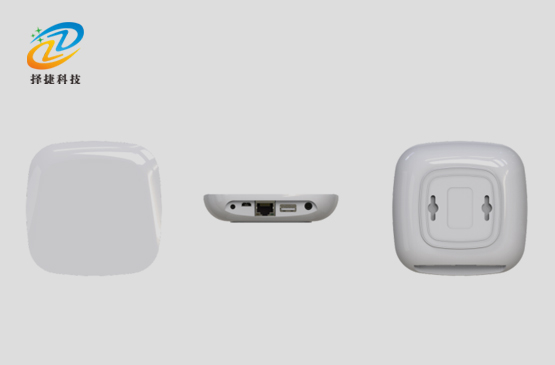
Product Real
 Ms. Lei
 Mr. Pang